IPTV for Families: Kids Profiles, Parental PIN and Screen-Time Tips
Step-by-step settings for kids profiles and a parental PIN, plus screen-time routines by age that actually stick.
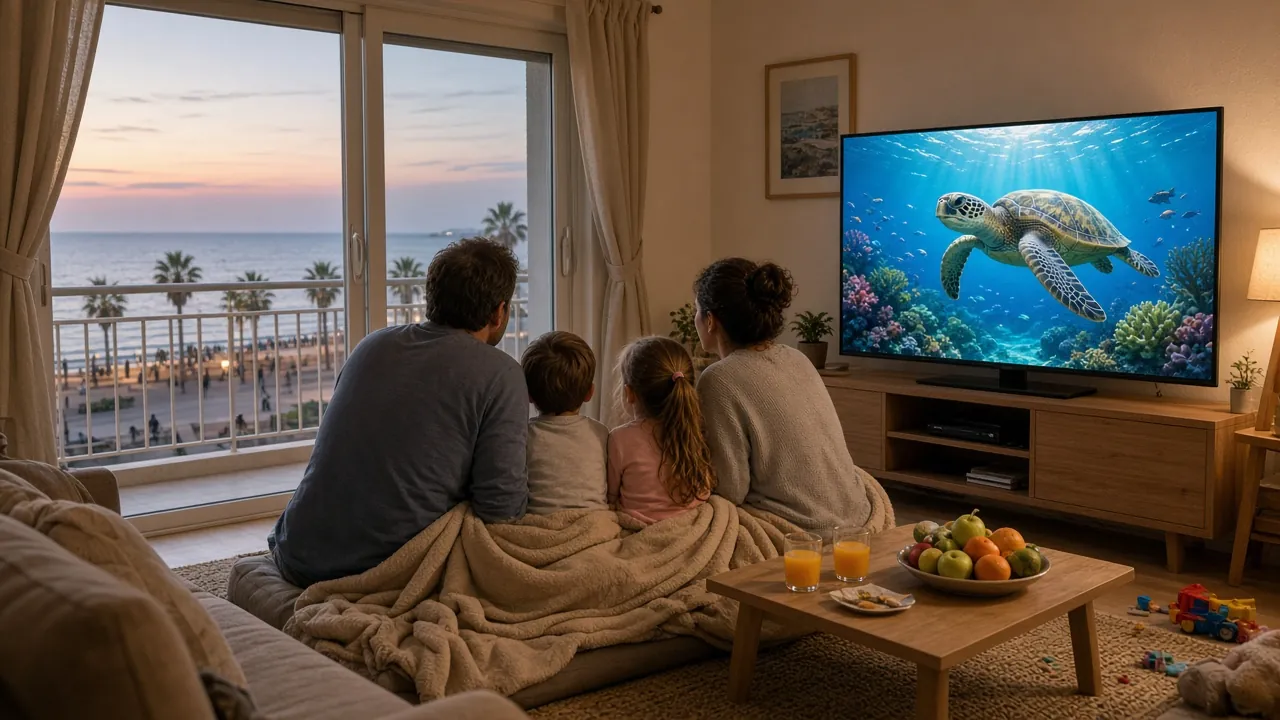
A good TV setup for a family is less about the number of channels and more about control: knowing the children can find their programmes easily, and cannot stumble into something unsuitable. This guide walks through the settings that make that possible, then looks at screen-time routines that actually stick.
Before you start: what your app can do
Online TV is watched through a player app, and different apps offer different controls. Before changing anything, open your app’s Settings menu and look for anything labelled:
- Parental control, Parental lock or Child lock
- PIN or Passcode
- Profiles or Users
- Favourites or My list
- Hide categories
Note down what you find. If you cannot see any of these, message us with your device and app name and we will tell you where the settings are, or suggest an app that has them.
Setting a parental PIN, step by step
The exact wording varies, but the process is almost always the same:
- Open Settings in the player app.
- Find Parental control (sometimes under “Security” or “General”).
- Create a four-digit PIN. Choose something the children will not guess: not 1234, and not a birthday.
- Choose what to lock. Most apps let you lock whole categories, individual channels or both. Lock anything you would not want younger children to open.
- Decide whether the on-demand library needs a lock too. Films and series often have their own setting.
- Test it. Go back to the channel list and try to open a locked item. The app should ask for the PIN.
- Write the PIN down somewhere safe for the adults in the house.
Repeat the steps on every device the children use, because settings are usually stored per device, not per account.
Building a kids’ favourites list
A favourites list is the simplest child-friendly tool of all. Instead of scrolling through thousands of channels, children see a short list of their own.
- Open the kids category in the channel list.
- Highlight a channel your children enjoy.
- Press and hold OK (or use the menu button) and choose Add to favourites.
- Repeat for each channel.
- Open Favourites from the main menu to check the list.
Some apps let you create several lists. If yours does, make one for the children and another for the adults.
Using profiles, where available
Some player apps support separate profiles, each with its own favourites and restrictions. If yours does:
- Create a profile for each child, or one shared “Kids” profile.
- Restrict that profile to children’s categories.
- Protect the adult profile with the PIN, so switching back needs the code.
If your app does not support profiles, a locked adult section and a kids’ favourites list achieve most of the same result.
Where to find the settings on different devices
- Smart TV apps: open the app, then look for a gear icon or “Settings” in the side menu. Parental options are often under “General” or “Security”.
- Android TV boxes and streaming sticks: settings may exist in two places, the player app and the device itself. Set the PIN in the player app first.
- Tablets and phones: besides the player app’s own lock, most tablets offer system-wide screen-time and content controls in the device settings. They are useful for setting daily limits.
- Computers: use a separate user account for children where possible, and set the PIN in the player app.
If you get stuck on any device, send us the make and model on WhatsApp and we will point you to the right menu.
Screen-time ideas by age
Every family is different, and there is no single right amount of screen time. These ideas are a starting point for a conversation, not rules:
| Age | Ideas that tend to work |
|---|---|
| Under 5 | Watch together where you can; keep to a short, familiar list of programmes; switch off at the same time each day |
| 5 to 8 | Agree the programmes before the TV goes on; use the favourites list; keep weekdays shorter than weekends |
| 9 to 12 | Let them help set the rules; use catch-up so a favourite show does not clash with homework |
| Teenagers | Agree limits together; focus on bedtimes and screens out of bedrooms rather than strict minutes |
Routines that actually stick
- Decide before you switch on. “One episode, then bath” is easier to keep to than “a bit of TV”.
- Use natural endings. Stop at the end of a programme, not in the middle.
- Make catch-up your friend. If something is on at an awkward time, get into the habit of watching it later from the TV guide instead.
- Keep one screen-free time each day, such as meals.
- Model it. Children notice when adults follow the same rules.
Sharing one TV fairly
In many homes there is one main TV and several opinions. A few ideas keep the peace:
- A simple rota for who chooses on which evening.
- Separate favourites lists so everyone can get to their channels quickly.
- Catch-up for clashes. If two programmes are on at once, one person watches live and the other catches up later.
- A second screen such as a tablet for the kitchen. Tell us how many screens you want to use at the same time and we will confirm what is possible.
As children get older
Controls that suit a five-year-old will frustrate a teenager. Review your settings every year or so:
- Unlock categories gradually as children grow, explaining why.
- Move from locks to agreements with older children, focusing on bedtimes and balance.
- Give teenagers their own favourites list so they feel ownership of what they watch.
- Keep the PIN private, but be open about what is locked and why.
A five-minute checklist for tonight
- Set a parental PIN in the player app.
- Lock the categories you are not comfortable with.
- Build a kids’ favourites list.
- Test that locked items ask for the PIN.
- Agree one simple screen-time rule with the children, such as “one programme after homework”.
Remember that settings are only half the story. The most effective “control” is usually a short conversation about what is on, why some things are locked and when the TV goes off. Children who understand the reasons are far more likely to stick to the rules.
Frequently asked questions
Do all IPTV apps have a parental PIN?
Most do, but not all, and the settings differ. Message us with your device and we will help you find the option.
Do I need to set the PIN on every device?
Usually yes, because settings are stored on each device rather than centrally.
Can I lock the films and series library?
Many apps have a separate lock for on-demand content. Look for it next to the channel lock.
Which plan suits a family?
Every plan has the same features. Families who watch most evenings usually choose the 12 Months plan at €4.92 a month.
Find out more about how our plans work for households with children on the family IPTV page, compare plan lengths on the plans page, or contact us for help with settings. For the full overview, visit online IPTV in Cyprus.